
MAGI-2 AI Video Generator

The MAGI-2 AI video generator turns prompts or still frames into short clips with synchronized dialogue, music, and sound effects.

Create a video

Try a prompt
Clip length
4–30 seconds
MP4 output
1080p
Dialogue and effects
Native sound
Watch MAGI-2 examples

What MAGI-2 can make

Watch four official Sand AI demos with sound, from a continuous walk through five paintings to a two-person dialogue.

A continuous walk through five art styles

0:30

Sand AI uses five paintings as visual references for a single moving viewpoint. Watch how the colors and brushwork change as the camera keeps moving in the same direction. If you are planning a continuous shot, pick one camera movement first and describe how the environment should change around it.

Sand AI showcase

One character in three oversized gardens

0:17

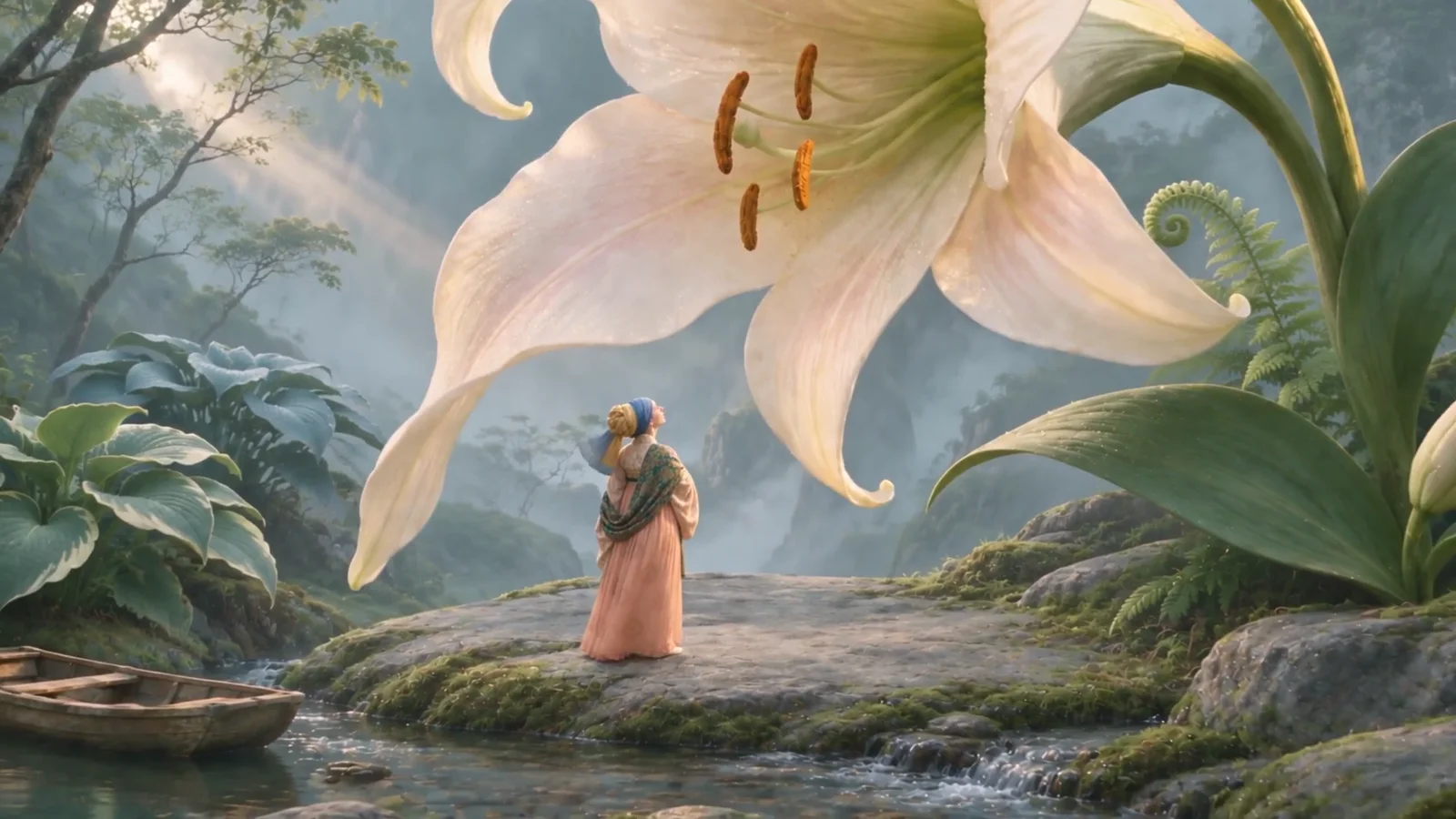
Multiple character and scene references carry the same wardrobe through an iris hillside, a rose garden, and a valley of lilies. Notice how foreground leaves and petals help cover transitions between camera angles.

Sand AI showcase

A snowboard sequence timed to the action

0:30

Sand AI uses its timeline controls to place cuts across a fast sequence. Watch how the direction of travel carries from one shot to the next. For a sequence you plan to edit, keep the motion direction consistent across takes.

Sand AI showcase

A conversation between Lu Su and Zhuge Liang

0:15

Sand AI gave its 480B pretraining checkpoint three story beats for a conversation on a boat. Framing and cuts were left to the model. Watch for the reaction shots between lines, then listen to when each speaker enters. The clip documents Sand AI’s research on how the model fills gaps in a short scene description.

Sand AI research demo

How to use the MAGI-2 AI video generator

Start a shot in the MAGI-2 AI video generator with a written scene or choose the image that should open the clip.

  1. Start with text or a photo

    Start with a prompt that describes the subject, setting, and one main action. In image to video, upload a photo to set the look and describe how you want the subject or camera to move.

  2. Set the length and framing

    Four or five seconds give a simple reveal room to read. Give a pause or a reaction more time. Use 9:16 for a vertical feed or 16:9 when the setting needs more horizontal space. Check the credit quote before you submit.

  3. Review the clip with sound

    Play the finished clip in your account to check the sound timing. Scrub to the opening and closing frames to check the composition. Download the MP4 when the take is ready. When revising, change one prompt direction at a time.

MAGI-2 credit costs

The quote in the generator follows the duration you select.

MAGI-2 pricing and credit plans
Shortest video
29 credits / 4 s
First single-video purchase
$5

Two MAGI-2 prompts to try

Text to video for a short scene with dialogue

At a quiet corner bakery before sunrise, the baker turns the sign to open and sets a tray of rolls on the counter. The camera moves slowly from the doorway toward the tray. She looks up and says, “You’re early.” A small bell rings behind her, followed by the sound of the tray touching the counter. Hold on her expression for a beat.

Try a 10-second landscape clip. The scene gives the model a single speaker and a clear order for the sounds. If the line feels crowded, shorten the opening action or leave more time after the baker looks up.

Image to video for a product close-up

Start on the ceramic mug in the uploaded image. Keep its handle, glaze, and position steady on the wooden table. Move the camera slightly closer as a thin curl of steam rises. A shadow from the window moves across the table. Let the room stay quiet apart from a soft kettle click in the distance. End with the mug centered and in focus.

A five-second shot is enough to show the steam and slow camera move. Use an optional end frame if the centered composition matters for a transition into the next shot. Match the lighting and camera angle across both images.

From first frame to final cut

Use a reference frame to anchor the details

Choose a sharp image where the subject stands out against the background. Keep important details away from the edges if your output will use a different aspect ratio. For a continuous shot that uses two frames, keep the subject recognizable in both and choose a viewpoint change the camera could make in the time available.

Give the audio its own instructions

Write what the viewer should hear and when it happens. Tie a sound effect to a visible event, such as a bell when a door opens. For speech, name the speaker and use one short line in quotation marks. Describe the background separately so footsteps, wind, or room tone support the scene. Leave a little space before and after a line so the scene has time to breathe.

Run a continuity check before publishing

Watch once for the overall pace and again for the details that matter to the project. In a product shot, pause near the end and compare the shape and label with the reference image. In a dialogue scene, listen for clear words and watch the speaker’s mouth. Leave room for captions in a vertical video and check the crop on the phone or platform where people will see it.

Build a longer sequence one shot at a time

Break a longer story into shots with a clear job for each one. An establishing shot can show where the action happens, a close-up can show what changes, and a reaction shot can give the moment room to land. Generate each shot at the aspect ratio of the finished edit. When two shots share a location, carry over the same framing cues, lighting, and wardrobe details. Bring the clips into an editor to set the exact cuts, balance the audio between takes, and keep a continuous ambience under the parts that belong in the same scene.

Hosted MAGI-2 and the 114B Preview

Movsona’s MAGI-2 AI Video Generator uses the hosted 480B model for 4–30 second 1080p videos with native sound. Sand AI’s open-weight 114B MAGI-2 Preview makes 10-second clips.

MAGI-2 AI video generator FAQ

Can I use a first frame and a last frame?

Yes. Upload a first frame in image to video. The last frame is optional. Use the prompt to describe the action between the two images.

What durations, aspect ratios, and resolution are available?

Output is 1080p. Choose 4, 5, 10, 15, 20, or 30 seconds and an aspect ratio of 16:9, 9:16, 1:1, 4:3, or 3:4. Text to video also supports 21:9.

What inputs and editing controls does Movsona support?

Movsona uses one hosted MAGI-2 model with text or still-image inputs. Sand AI’s demos show separate workflows for video references, audio references, and timeline editing.

Can I create a MAGI-2 video for free?

You can browse the guide and prepare your settings without paying. Generation requires eligible paid credits. Sign-up credits do not cover a complete video.

Will a finished video have a Movsona watermark?

Movsona does not add a site watermark to completed paid videos.

What happens when a generation fails?

A failed job restores the credits it charged. You can view its status after signing back in. A new generation after a completed job uses credits again.

How can I ask for dialogue or sound effects?

Describe who speaks, put each line of dialogue in quotation marks, and add the sound you want to hear. Give the action, camera movement, and sound a clear order in the prompt.